
The Replace Materials Dialog
This dialog can be opened by clicking on the related menu item in The Tools Menu or by clicking on the icon in the materials bar (see The Main Window User Interface).
With this dialog you can find a specific material and its related faces and replace this material by another one.
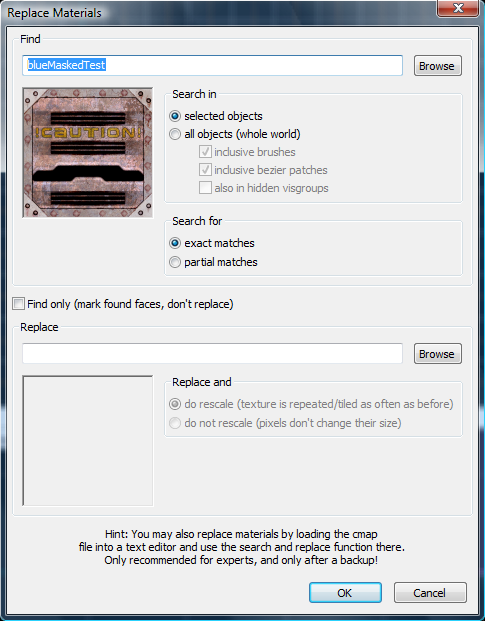
Find
- Material field
Name of the material to search for. Browse opens The Material Browser.
Search in
- selected objects
Searches only in the currently selected objects for faces with the material to find.
- all objects (whole world)
Searches in all map objects.
- inclusive brushes
Includes brushes into the search.
- inclusive bezier patches
Includes bezier patches into the search.
- also in hidden visgroups
Includes invisible objects into the search.
Search for
- exact matches
Only materials that match the exact material name given in the material field are found.
- partial matches
Materials whose names match the searched material name partially are also found (e.g. search name: wall; partially matches with wall_01, mywall, etc.).
- Find only
Found faces with the specified material are selected but the material is not replaced.
Replace
- Material field
Name of the material to replace with. Browse opens The Material Browser.
- Replace and rescale
The replacement material is rescaled in the same way as the old material.
- Replace and not rescale
The replacement material is applied without rescaling.