
Menu and Toolbar Reference
The Toolbar

- New
and Open: In the Model Editor, as new models cannot be created from scratch, these two buttons serve the same purpose: They open the dialog for loading or importing model files.
- Save
Saves the model under the current name.
- Save As…
Saves the model under a new name.
- Undo
Un-does the previously made change to the model.
- Redo
Re-does a previously undone change.
- Cut
, Copy and Paste: These three are not yet implemented in the Model Editor.
- Delete
If the currently selected model element can be deleted, this button deletes it.
- Animation playback
play or pause the currently selected animation sequence, or switch to the previous or next available sequence in the animations list.
- Transform model
Opens the Transform Model dialog.
- Add GUI fixture
Adds a new GUI fixture to the model.
The File menu
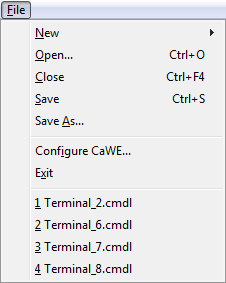
- New
Opens the dialog for creating a new map or new GUI, or for importing a model.
- Open…
Opens the dialog for loading or importing a map, a GUI or a model.
- Close
Closes the currently active file.
- Save
Saves the file under the same name.
- Save As…
Saves the file under a new name.
- Configure CaWE…
Opens the Configure CaWE dialog.
- Exit
Checks if all modified files have been saved and quits the application.
- Recently opened files
This part of the menu lists the most recently opened files. Select one to open it.
The Edit menu
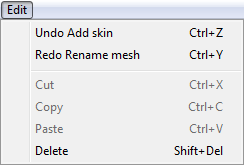
- Undo
Un-does the previously made change to the model.
- Redo
Re-does a previously undone change.
- Cut
, Copy and Paste: These three are not yet implemented in the Model Editor.
- Delete
If the currently selected model element can be deleted, this button deletes it.
The View menu
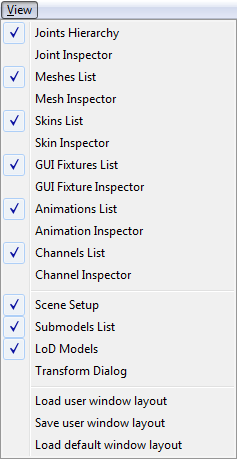 The View menu items open and close the dialogs and panes of
the Model Editor: Check an item to show the related pane, and un-check
the item to hide it again.
The View menu items open and close the dialogs and panes of
the Model Editor: Check an item to show the related pane, and un-check
the item to hide it again.
The Model menu
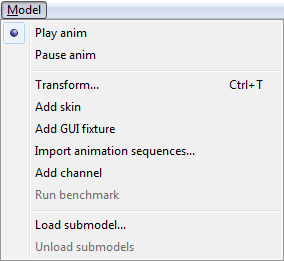
- Play anim
and Pause anim: Like the related toolbar buttons, play and pause the currently selected animation sequence.
- Transform…
Opens the Model Transform dialog.
- Add…
or Import…: These items are the menu equivalents to the “+” buttons in the model element lists: The add or import a new model element of the specified type.
- Run benchmark
This is not yet implemented.
- Load submodel…
and Unload submodel: Loads and unloads submodels, just like the “+” and “-” buttons of the Submodels dialog.
The Window menu
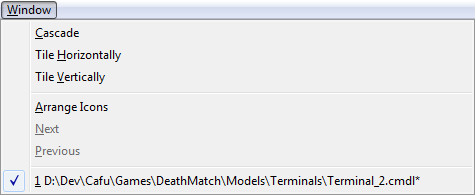 As in all of the Map, GUI and Model Editors, the Window
menu can be used to arrange and change to the currently opened
windows.
As in all of the Map, GUI and Model Editors, the Window
menu can be used to arrange and change to the currently opened
windows.The Help menu
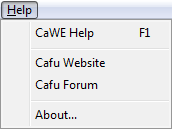 As in all of the Map, GUI and Model Editors, the Help
menu opens the web browser with related websites for help and support,
and shows the CaWE About dialog.
As in all of the Map, GUI and Model Editors, the Help
menu opens the web browser with related websites for help and support,
and shows the CaWE About dialog.